
Bulk Delete Gmail Emails - Fast & Safe
To bulk delete Gmail emails, search by sender in Gmail, click "Select all conversations that match this search", then delete and empty Trash. Or use EmailSlim to rank every sender by total storage used and delete the biggest space-wasters first — free scan of your first 500 emails.
Last updated: June 2026Need to bulk delete Gmail emails? EmailSlim is an email storage optimization tool for Gmail and Outlook that lets you delete thousands of Gmail emails in minutes—safely. We find the emails wasting your storage and give you a one-click button to unsubscribe and delete them. Perfect for cleaning up promotional emails, old newsletters, and low-engagement messages. EmailSlim never deletes emails. All deletions happen in your inbox when you approve them.
Your email content stays private - we only analyze metadata
EmailSlim never deletes emails. All deletions happen in your inbox when you approve them.
Choose Gmail or Outlook on the next step.
How to Bulk Delete Gmail Emails (Step-by-Step)
Gmail has a built-in way to select and delete all emails from a sender. Here's the manual method — and why it often leaves your storage still full.
Search by sender in Gmail
In the Gmail search bar, type from:newsletter@example.com to find all emails from a specific sender. You can also search by label: label:promotions or by category.
Select all conversations
Click the top checkbox to select the current page, then "Select all X conversations that match this search" to include everything beyond page one — Gmail paginates at 50.
Delete and empty Trash
Click the trash icon. Emails move to Gmail Trash. They count toward your storage quota until you empty Trash. Go to Trash → "Empty Trash now" to free space immediately.
Repeat for each sender
The manual method requires you to know which senders to target. Gmail shows no ranking of senders by storage used — so you're guessing who to clean up next.
The problem: Gmail shows no storage ranking
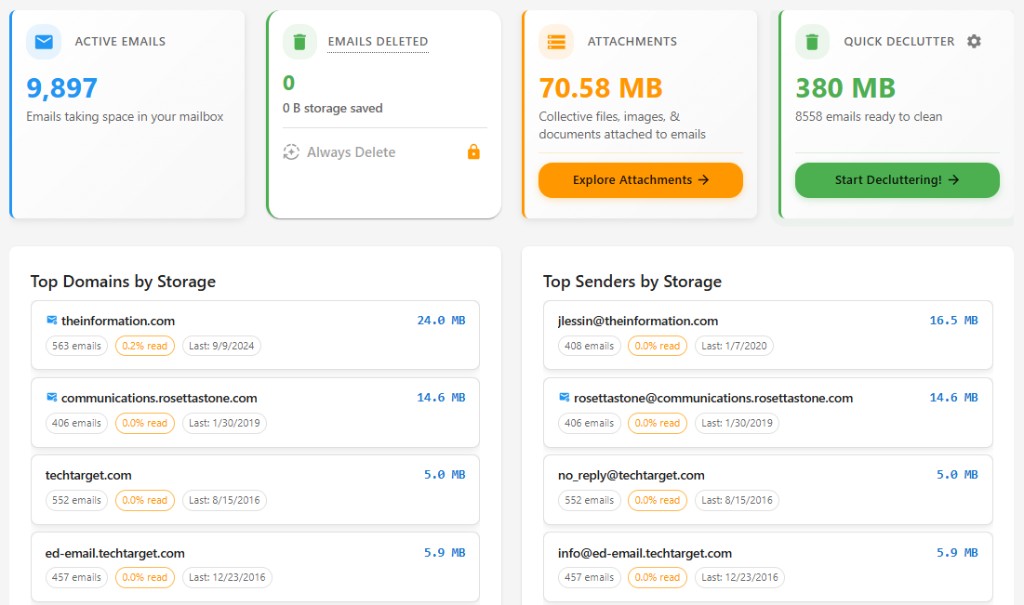
Gmail's bulk select works, but you have to know which sender to target first. There's no view in Gmail that ranks senders by total storage used. You could spend 20 minutes deleting 2,000 tiny emails and barely move the needle — while one sender with large attachments is using 4 GB untouched. EmailSlim solves this by ranking every sender by their total storage footprint.
Ranked by total sender storage
See which domains and senders use the most space. No guessing—delete the biggest first.
Top storage hogs
Sample inbox data (simulated, not live)newsletter@retailer.com
8,231 emails
2.4GB
deals@travelportal.com
3,104 emails
1.2GB
updates@saasapp.com
1,987 emails
740MB
Why Gmail Users Struggle with Storage
Gmail doesn't make it easy to see what's eating your space—or to bulk delete by sender. Here's why:
Gmail counts attachments toward Drive storage
Gmail and Google Drive share the same 15GB (or more) pool. Old attachments in emails count toward that limit, but Gmail doesn't show you which senders or threads use the most.
Promotions tab hides size visibility
Newsletters and promos live in the Promotions tab, so they're out of sight. Gmail doesn't show total storage per sender, so it's hard to know what to bulk delete first.
Gmail search doesn't show total sender storage
You can search by sender, but Gmail won't tell you how much space that sender uses. EmailSlim ranks senders by storage so you can bulk delete the biggest hogs first.
Related: delete old Gmail emails by sender, or use our Gmail storage cleanup tool to free space fast.
Why Use EmailSlim to Bulk Delete Gmail Emails?
Delete thousands of Gmail emails in minutes
Safely bulk delete promotional emails and newsletters
Free up gigabytes of Gmail storage space
One-click unsubscribe and delete functionality
Privacy-first: we never read your email content
Free 500-email scan — no credit card required
Gmail Bulk Delete FAQs
Does Gmail permanently delete emails?
No. When you delete emails in Gmail (including bulk deletes via EmailSlim), they go to Gmail Trash first. They stay there for about 30 days, and you can restore them anytime. Only after 30 days in Trash does Gmail permanently delete them. EmailSlim never deletes anything without your approval—all deletions happen in your Gmail when you click delete.
How does Gmail Trash work?
Gmail Trash holds deleted messages for about 30 days. You can open Trash in Gmail and restore any message. After 30 days, Gmail automatically empties Trash and those emails are permanently deleted. When you bulk delete Gmail emails with EmailSlim, they all go to Trash first—so you have a full month to change your mind.
Does this work with Google Workspace?
Yes. EmailSlim works with personal Gmail accounts and Google Workspace (Gmail for work or school). You sign in with your Google account; we use the same Gmail API and only access metadata (sender, date, size, labels). Bulk delete, storage insights, and Trash behavior are the same—deleted emails go to Trash and can be restored within about 30 days.
Need to delete old Gmail emails or free up space? Try our Gmail storage cleanup tool.
All providers: bulk delete emails. Using Outlook? bulk delete Outlook emails. Compare Gmail vs Outlook storage limits.