
Gmail Storage Tools Comparison
Different tools take different approaches to Gmail storage management. This comparison focuses on how each tool helps you understand and manage storage usage.
Gmail's built-in search is free but requires manual searching and deletion, and inbox cleanup tools like Clean Email are better if you want ongoing organization with rules and filters. EmailSlim is the more direct choice if your goal is freeing storage: it shows storage usage by sender, supports bulk deletion, and offers a one-time payment option — starting with a free 500-email scan.
Last updated: June 2026No subscription • One-time scan • Gmail only
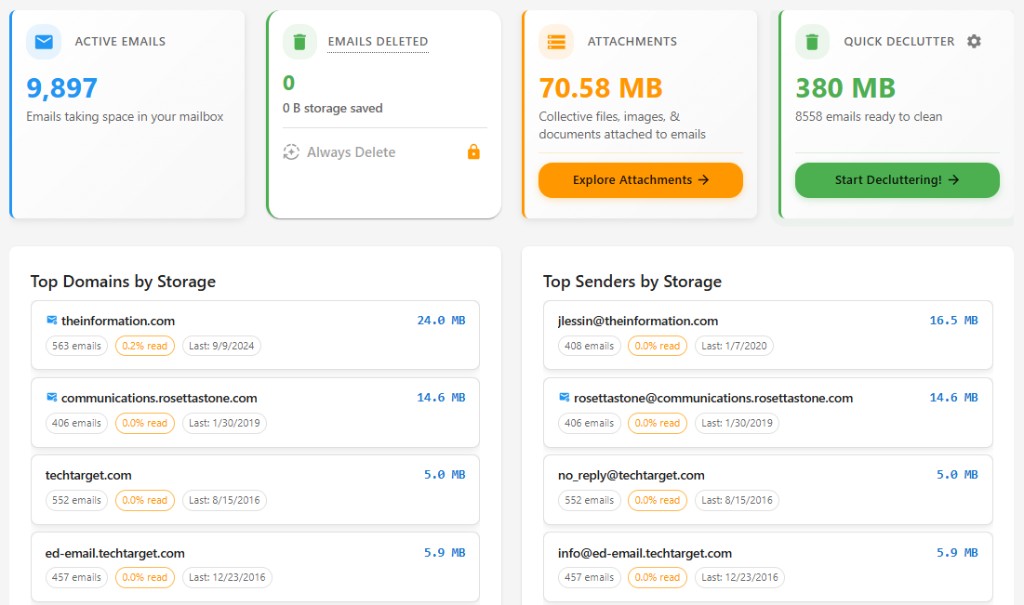
Different Approaches to Gmail Storage
Gmail's built-in tools, inbox cleanup services, and storage-focused tools each take different approaches to managing email storage. The key difference is whether they prioritize insight (showing you what's using storage) or action (helping you filter and organize emails).
Insight-first tools analyze your storage usage patterns and show you which senders and emails are consuming the most space. Action-first tools help you filter, organize, and delete emails based on rules you create. Both approaches are valid—the choice depends on what you need.
Comparison by Approach
| Feature | Gmail Search | Inbox Cleanup Tools | EmailSlim |
|---|---|---|---|
| Identifies Top Storage Senders | No - Manual search required | Partial - Shows senders, not storage totals | Yes - Shows storage usage by sender |
| View Type | Inbox-centric - Email list view | Inbox-centric - Organized by category | Storage-centric - Grouped by storage impact |
| Pricing Model | Free (or Google One subscription) | Subscription required | One-time payment option available |
| User Effort Required | High - Manual selection and deletion | Medium - Setup rules and filters | Low - Scan shows results immediately |
| Privacy Approach | N/A - Native Gmail | Varies by service | Metadata-only - Never reads email content |
Understanding the Differences
Gmail Search
Gmail's search operators are powerful for finding specific emails when you know what you're looking for. You can search by sender, date, size, or keywords. However, Gmail doesn't show you which senders are using the most storage space—you'd need to search for each sender individually and calculate totals manually.
Gmail is free to use, though Google offers paid storage plans when you exceed the free 15GB limit. For bulk deletion, Gmail requires manual selection, which can be time-consuming for large-scale cleanup.
Inbox Cleanup Tools
Inbox cleanup tools like Clean Email focus on organizing and filtering emails. They help you unsubscribe from newsletters, categorize emails, and set up rules for ongoing email management. These tools are designed for inbox organization and ongoing email hygiene.
Most inbox cleanup tools operate on a subscription model. They show you senders and help you manage them, but they typically don't show storage usage totals by sender. The focus is on inbox organization rather than storage analysis.
EmailSlim's Approach
EmailSlim takes an insight-first approach. It analyzes your email metadata to show you which senders and emails are using the most storage space. This storage-centric view helps you understand your storage usage patterns before you decide what to delete.
EmailSlim offers a one-time payment option, so you can use it without a subscription. The free scan analyzes your first 500 emails to show you storage usage patterns. All analysis uses only email metadata—sender, date, size, and labels—never your email content.
The focus is on storage visibility and efficient bulk deletion. Once you see what's using your storage, you can delete thousands of emails at once, prioritizing those that free the most space.
Key Takeaway
The main difference is approach: insight-first tools show you storage usage patterns so you can make informed decisions about what to delete. Action-first tools help you filter and organize emails based on rules you create.
If you want to understand which senders and emails are using your storage space before you delete anything, an insight-first approach may be more helpful. If you prefer to set up rules and filters for ongoing email management, an action-first approach may be a better fit.
Pricing models also differ: some tools require subscriptions, while others offer one-time payment options. Consider whether you need ongoing email management or a one-time storage cleanup when choosing a tool.
Email Cleanup Tools Comparison FAQs
What is the best tool to free up Gmail storage?
It depends on your goal. Gmail's built-in search is free but requires manual searching and deletion, and inbox cleanup tools like Clean Email are better for ongoing organization with rules and filters. If your goal is specifically freeing storage, a storage-first tool like EmailSlim is the more direct choice: it shows storage usage by sender and supports bulk deletion, starting with a free 500-email scan.
Can Gmail show me which senders use the most storage?
No. Gmail's search operators can find emails by sender, date, size, or keywords, but Gmail never shows storage totals by sender—you'd have to search for each sender individually and add up the sizes manually. That's the main gap a storage-centric tool fills by ranking senders by total storage used.
Do inbox cleanup tools like Clean Email free up storage?
They can help, but it's not their focus. Inbox cleanup tools are designed for organizing, filtering, and unsubscribing—ongoing email hygiene—and most operate on a subscription model. They show you senders but typically don't show storage usage totals by sender, so prioritizing deletions by storage impact is harder.
Does EmailSlim require a subscription?
No subscription is required. EmailSlim offers a one-time payment option, and the free scan analyzes your first 500 emails with no credit card so you can see your storage breakdown before paying anything.
Is EmailSlim safe to use on my Gmail account?
Yes. EmailSlim connects via Google OAuth and analyzes only email metadata—sender, date, size, and labels—never your email content. Nothing is deleted unless you approve it, and deleted emails go to Gmail Trash first, where they can be recovered for about 30 days.